
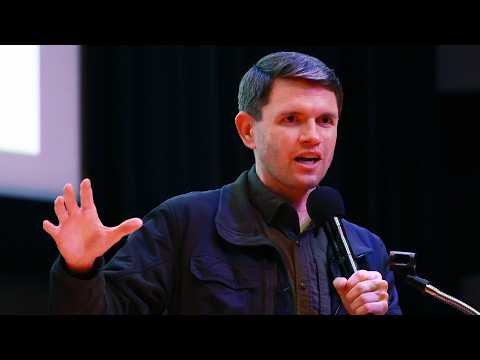
How to Relink Media in DaVinci Resolve!
In this video, Jay Haynes teaches how to relink lost media in DaVinci Resolve. Learn the step-by-step techniques to master relinking media in DaVinci Resolve fusion. This DaVinci Resolve tutorial will help you get started!
Learn how to relink missing media in DaVinci Resolve quickly. Fix your offline clips and reconnect your project files in minutes.
This DaVinci Resolve tutorial is designed for editors encountering the red media offline warning in their timeline. If you have moved folders or renamed assets on your hard drive, your project often loses the connection to the source files. This guide shows you the exact steps to locate your files and restore your work without losing your edits.
To resolve the issue, select your offline clips, right-click to access the clip operations menu, and choose the option to relink selected clips. From there, simply navigate to the correct folder on your computer to re-establish the connection. Mastering effective media management is essential for maintaining a clean workflow and preventing future project errors when moving assets between different storage locations.
Chapters:
0:00 – Intro
0:07 – Relink Media in DaVinci Resolve
0:32 – Outro
Sensei’s Links:
Learn More about Me: https://www.jayhaynes.com/
Film Sensei Patreon: https://www.patreon.com/filmsensei
Productioncrate: https://productioncrate.grsm.io/FilmSensei
Need anything? Contact me today!
Email: hitfilmsensei@gmail.com
Want to keep up with everything I am doing? Follow me!
Twitter: https://twitter.com/filmsensei
Facebook: https://www.facebook.com/filmsensei/
Twitch Livestreams: https://www.twitch.tv/filmsensei
Please think about subscribing to my channel. Many thanks!